How to Update pomera DM250US Software
1. Preparing for Update
To update the software, you will need the following items.
- Digital Typewriter pomera DM250US
- SD Card
- USB Cable (Type-A/Type-C)
- *Included in pomera DM250US
- AC Adapter
- *Included in pomera DM250US
- A computer with a USB port that can connect to the Internet
Attention
Before updating the software, please back up* the files and registrated words stored in the internal storage.
- *Please note that KING JIM is not responsible for any loss of data.
2. Download the Update Program
Download pomera DM250US Updated Program (Ver.1.1.0.0) to your PC.
- *KING JIM grants the right to use the updated program to residents of the United States of America.
3. Copy the Update Program to the SD Card
Copy the update program (pomera_DM250US_v1_1_0_0.bin) to the SD card.
- 1.Insert the SD card into your pomera and connect the USB cable.
- 2.Connect the USB cable to your PC.
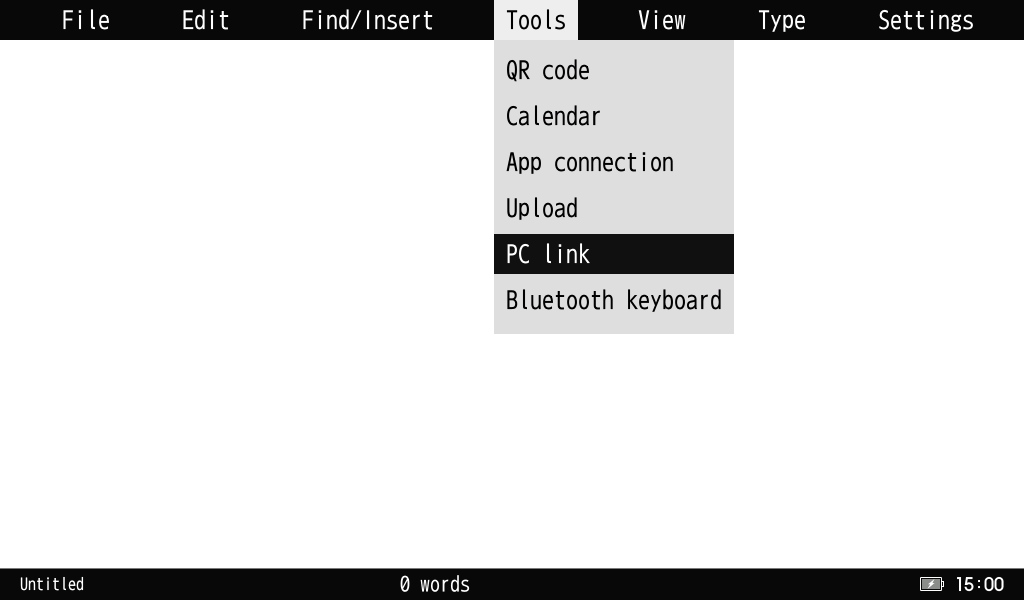
- 3.Turn on the power, press the menu key - [Tools] - [PC Link] and press the enter key.
When your pomera is linked to your PC, your PC recognizes your pomera and the SD card as a new hardware.
- 4.Copy the update program "pomera_DM250US_v1_1_0_0.bin" to the first level (directly below) of the SD card.

- 5.Remove the device from your PC.
Select [Safety Remove Hardware] on your PC and exit PC Link.
Attention
- For information on how to operate pomera DM250US, please refer to the User's Manual (PDF:10.8MB).
- If the update program is copied to your pomera's internal storage, you will not be able to update the software.
Please make sure that you copy the update program to the first level (directly below) of the SD card.
4. Update the Software
Update the software using the latest version of the update program stored on the SD card.
- 1.Insert the SD card with [pomera_DM250US_v1_1_0_0.bin] copied.
- 2.Connect the USB cable to the AC Charger (or a computer with power).
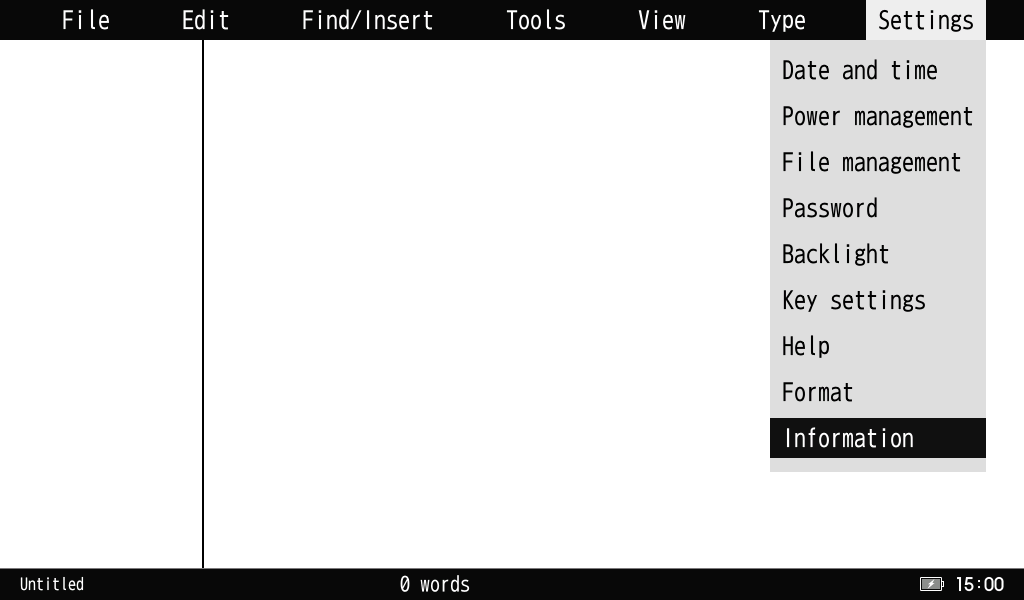
- 3.Turn on the power, press the menu key - [Settings] - [Information], and press the enter key.
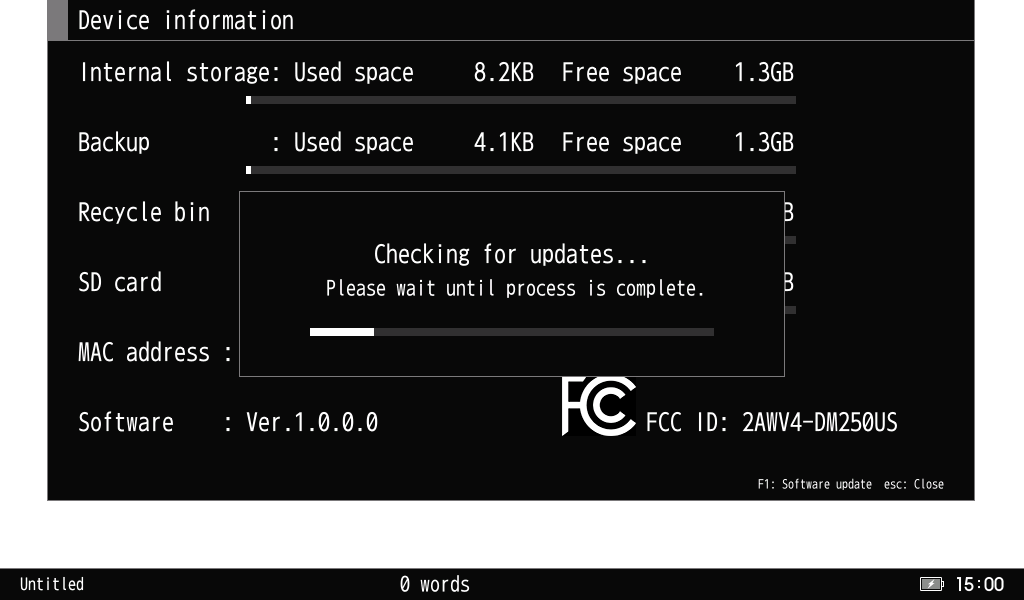
- 4.When you press the F1 key, the message [Checking for updates …] will appear on the screen.
Attention
Before updating the software, please back up* the files and registrated words stored in the internal storage.
- *Please note that KING JIM is not responsible for any loss of data.
The USB cable must be connected to the AC Charger or the PC with power.
- 5.When the update program is recognized, a popup message will appear on the screen.
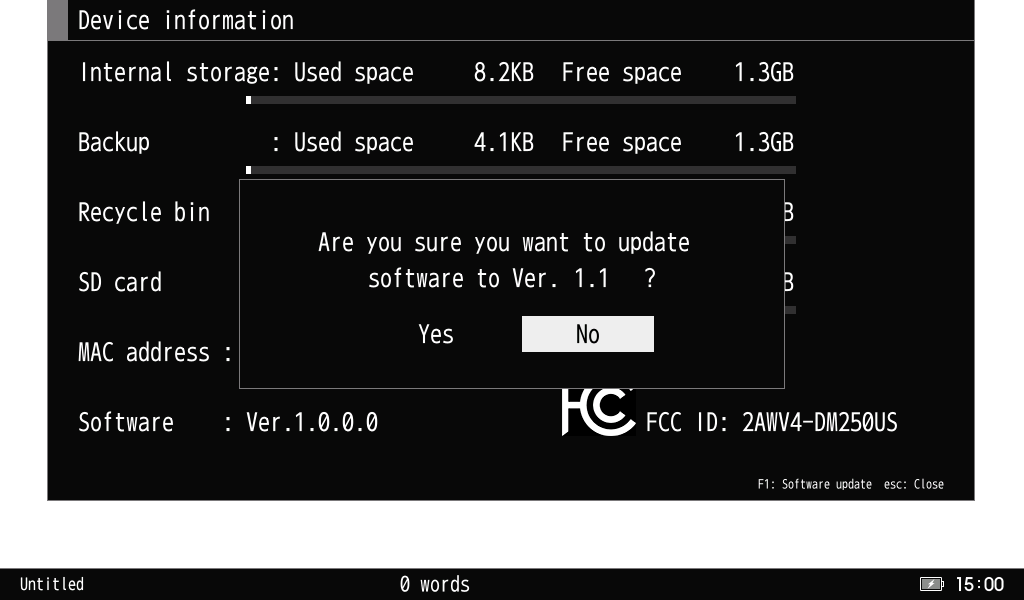
- 6.Select [Yes] to start the update.

Attention
- Please do not disconnect the USB cable while updating.
- If the sleep setting is enabled, the screen will turn off. The screen will be displayed again when you presss any key.
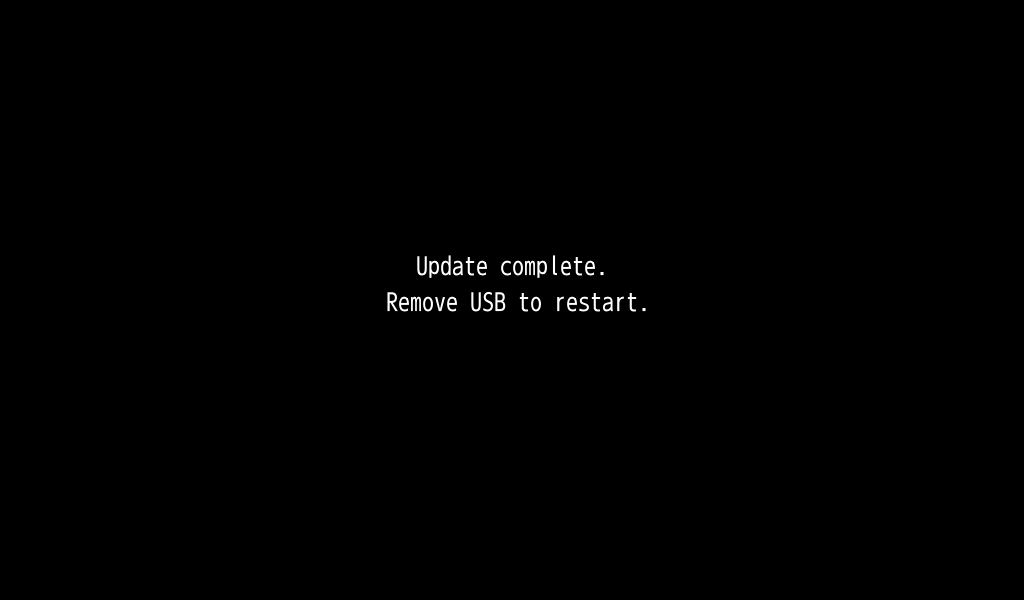
- 7.When [Update complete.] appears on the screen, disconnect the USB cable.
pomera will automatically restart.
- 8.Check the software version after restarting.
Press the menu Key - [Settings] - [Information] and press the enter key to check the software version.
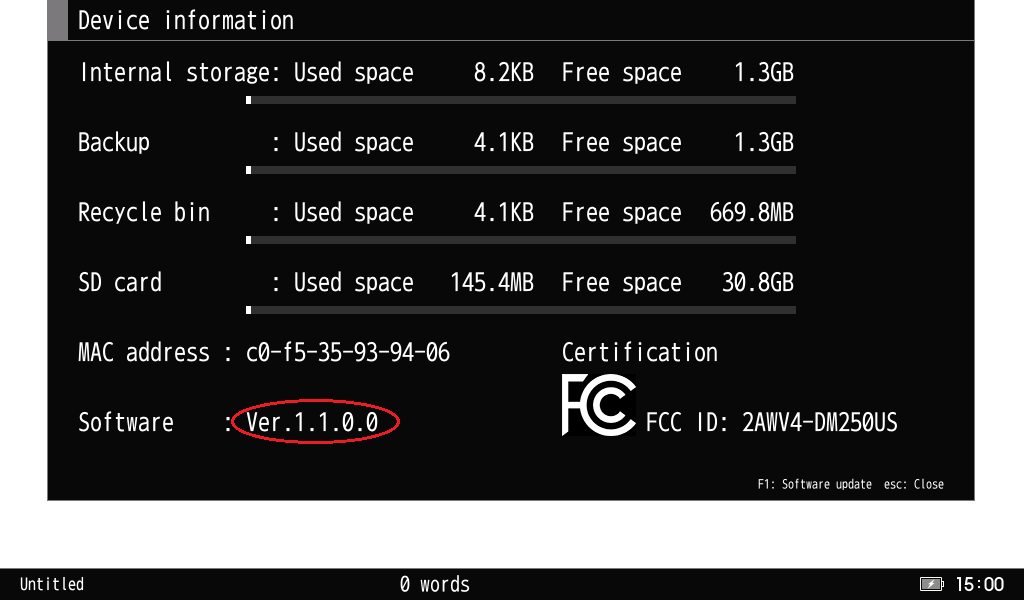
If [Software: Ver. 1.1.0.0] is displayed, the update has been successful.
5. Set the Date and Time
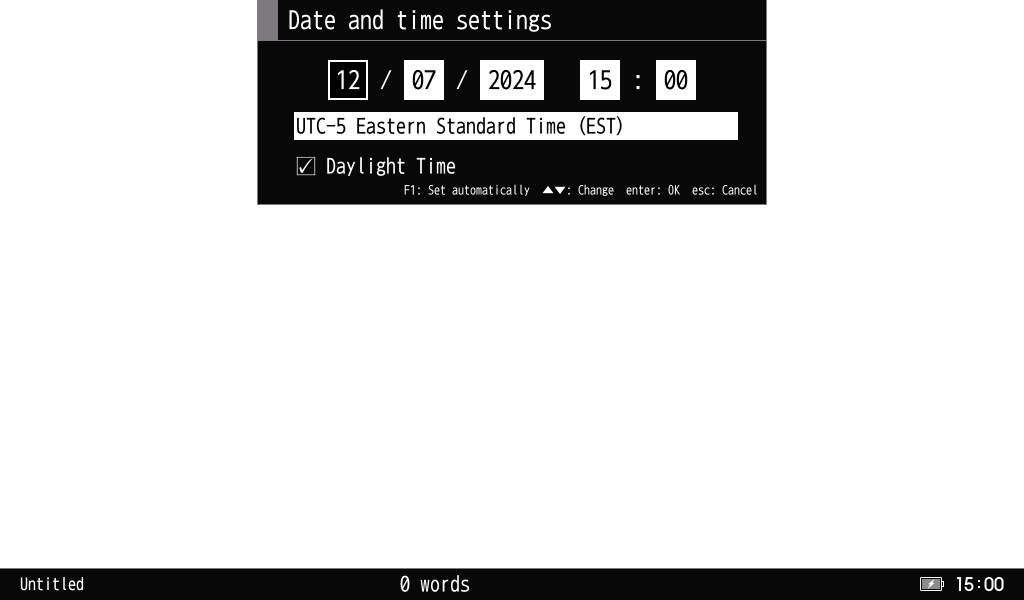
- 1.Press the menu key - [Settings] - [Date and time] and press the enter key.
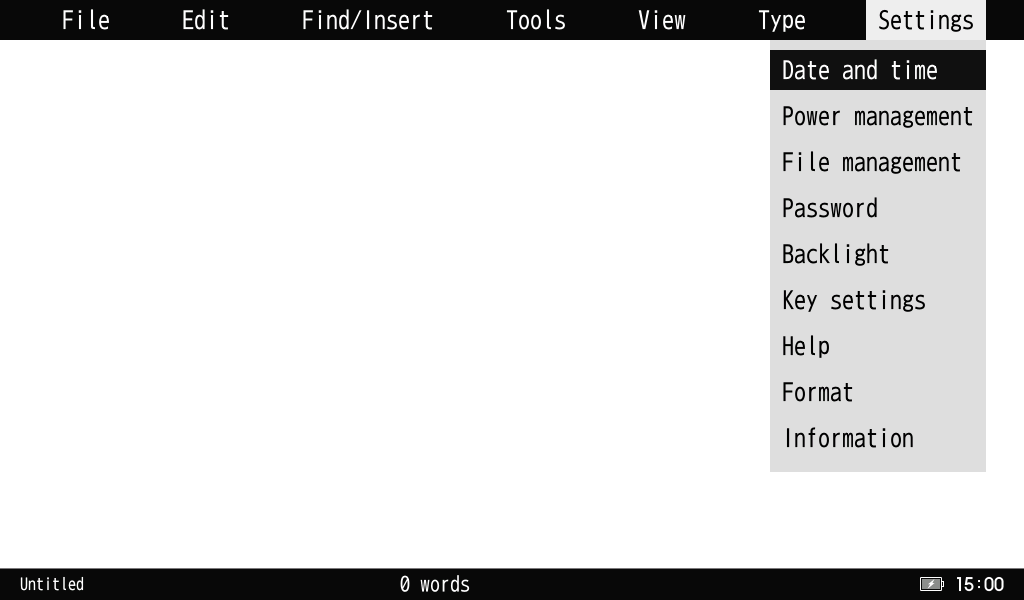
- 2.Set the date and time and press the enter key.