3-1Save the created label data (file)
(1)
Tap  (Save) in the Label Editing Window.
(Save) in the Label Editing Window.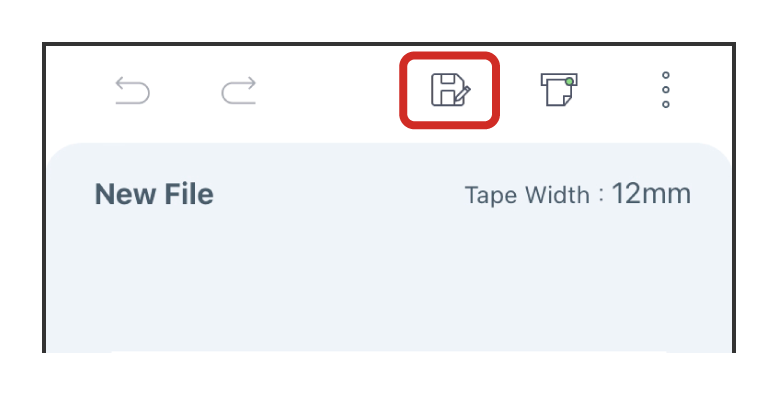
(2)
Enter a file name and tap "OK".
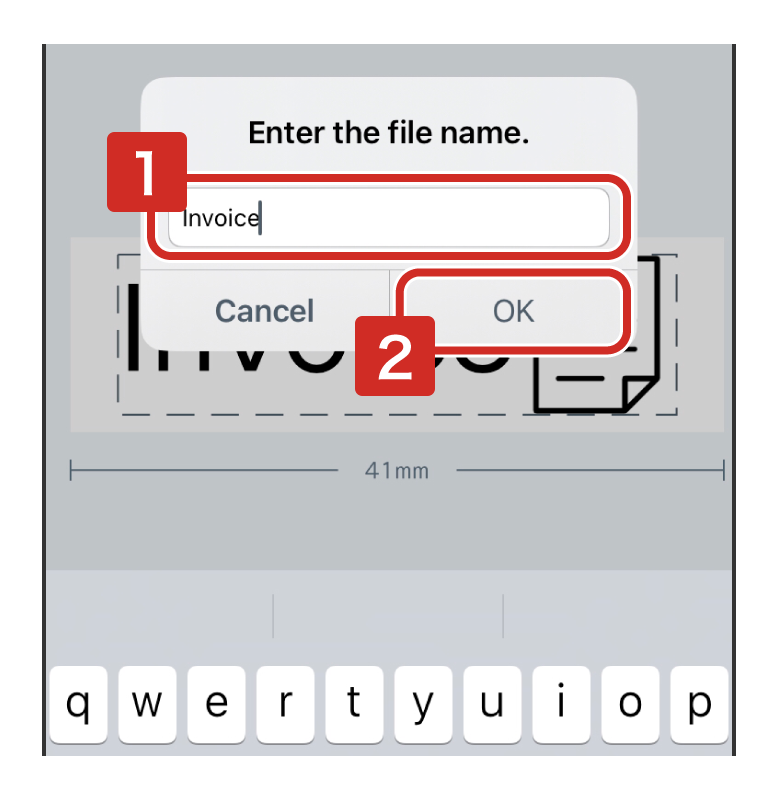
New files are automatically saved in the "Default" folder.
If the file has already been saved, tap and then tap "OK" without changing the file name, an alert will appear asking whether you want to overwrite save the file. If you do not want to overwrite save the file, please change the file name.
and then tap "OK" without changing the file name, an alert will appear asking whether you want to overwrite save the file. If you do not want to overwrite save the file, please change the file name.Up to 300 files can be saved per folder.
If the file name contains a "/" character, it will be automatically converted to a "_" character when you enter the file name and tap "OK".
3-2Opening a saved file
(1)
Tap  (Menu) in the Label Editing Window.
(Menu) in the Label Editing Window.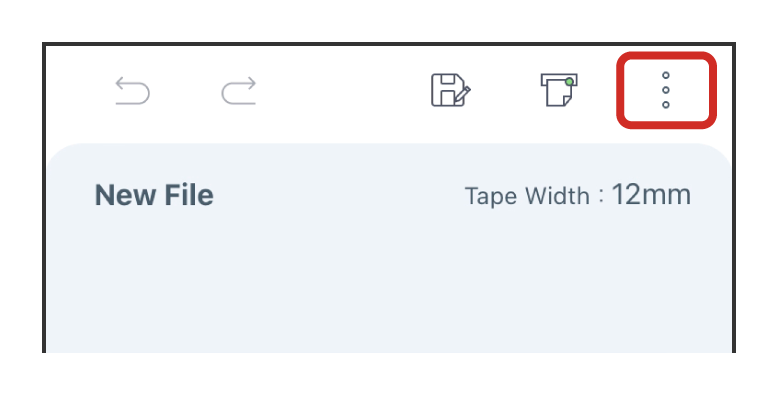
(2)
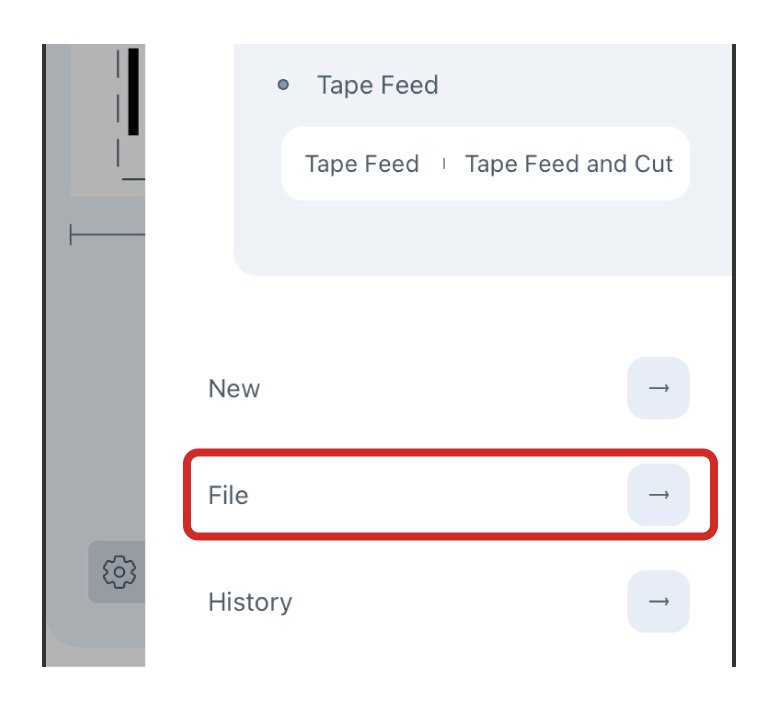
Tap "File".
(3)
Select a folder.
Select the folder where the file you want to open is saved in the file list screen.
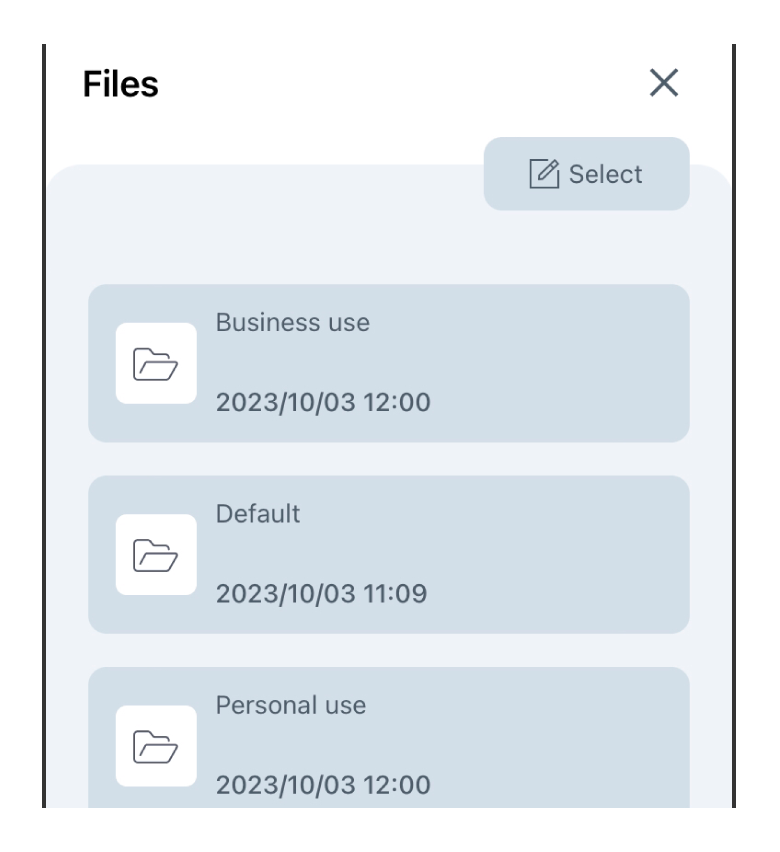
If the "Default" folder is displayed, tap  in the upper left of the screen to display the file list, and then select the appropriate folder.
in the upper left of the screen to display the file list, and then select the appropriate folder.New files are automatically saved in the "Default" folder.
(4)
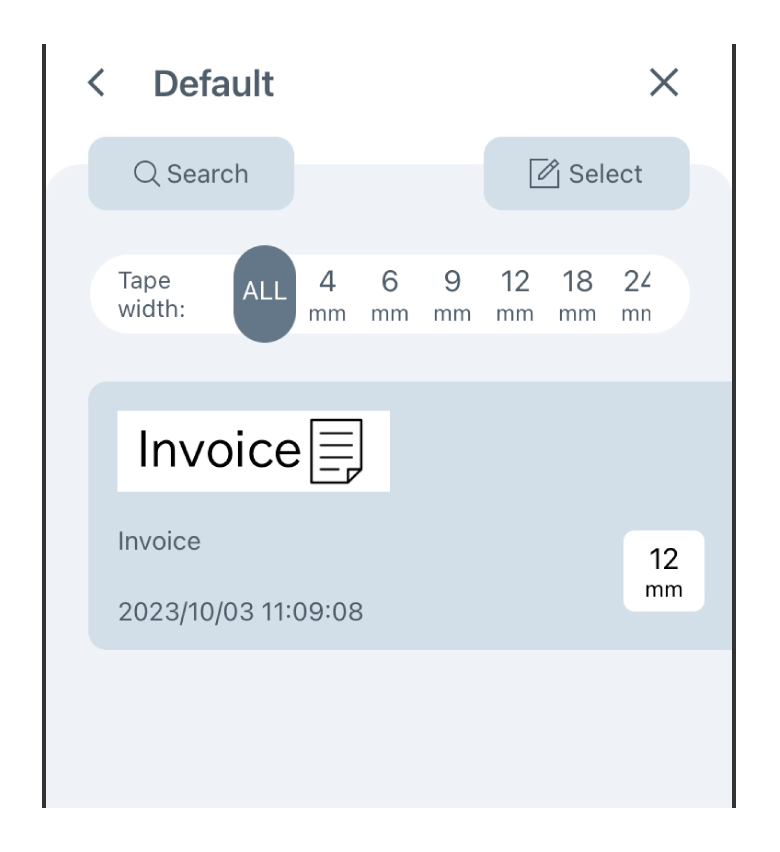
Tap the file you want to use to open it.
3-3Rename, share, move, duplicate, and delete files
(1)
Tap  (Select) in the file list screen.
(Select) in the file list screen.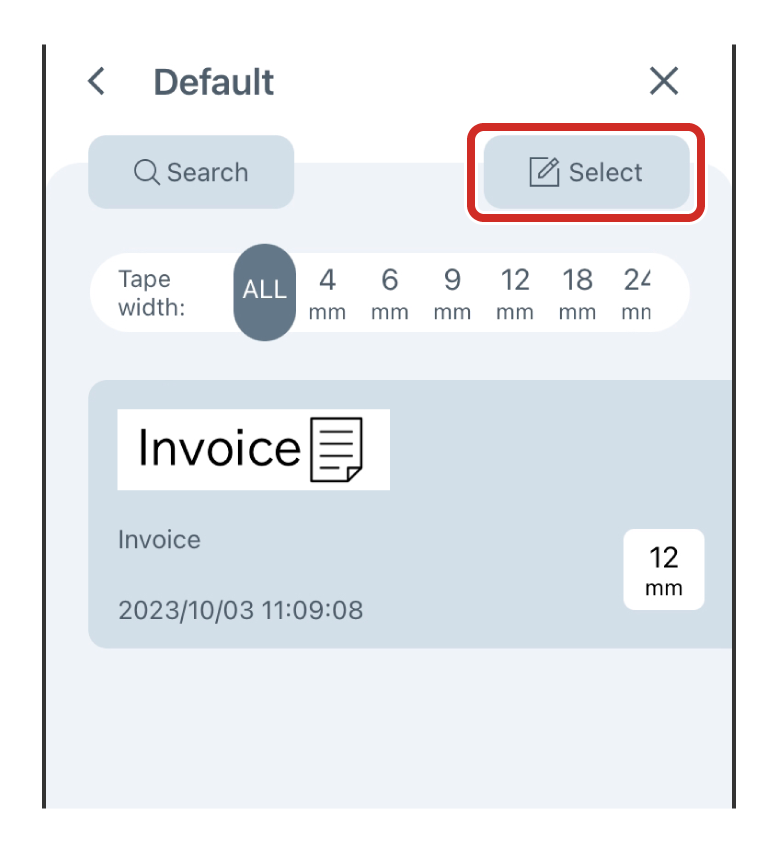
(2)
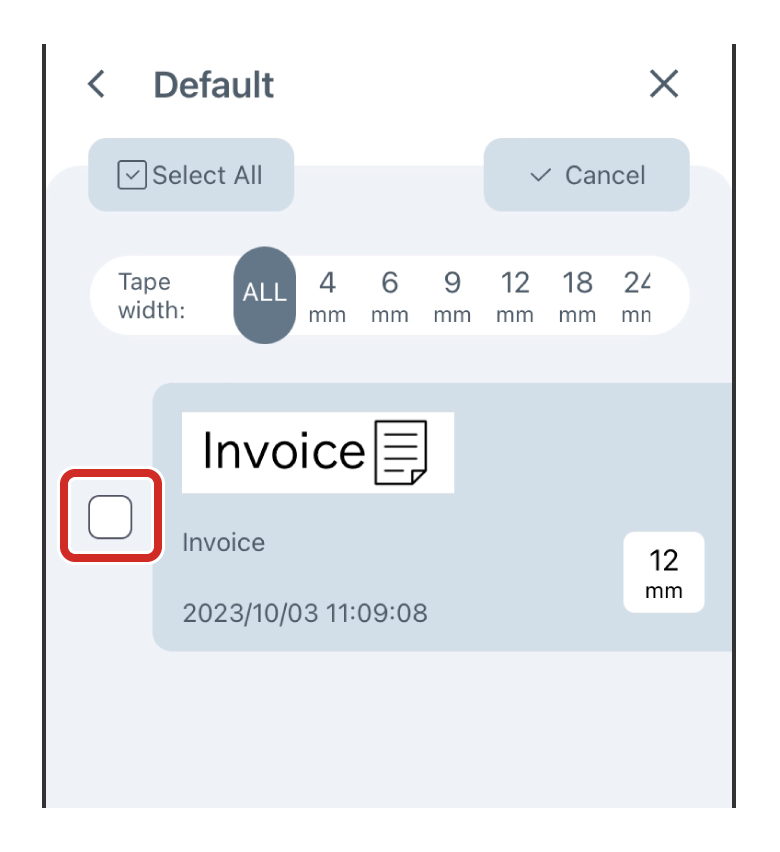
Select the check box for the file.
(3)
Tap the target icon and follow the instructions on each screen.
• : Rename the file
• : Share
• : Move
• : Copy
• : Delete
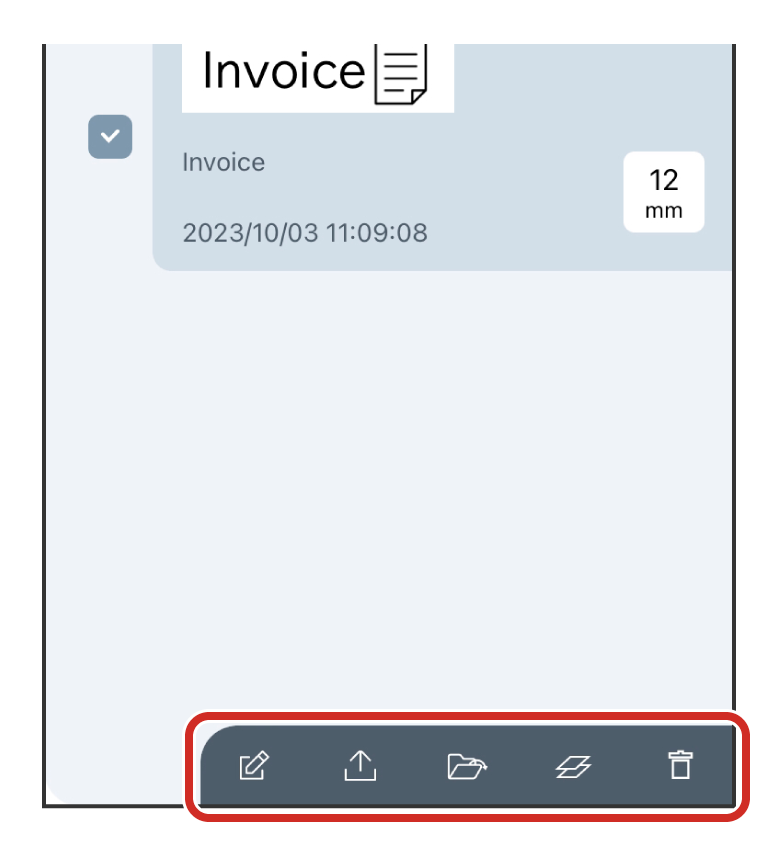
The file name can only be changed when one file is selected. This operation is not available when multiple labels are selected.
3-4Creating a new file or a new folder
(1)
Tap  (New) in the file list screen.
(New) in the file list screen.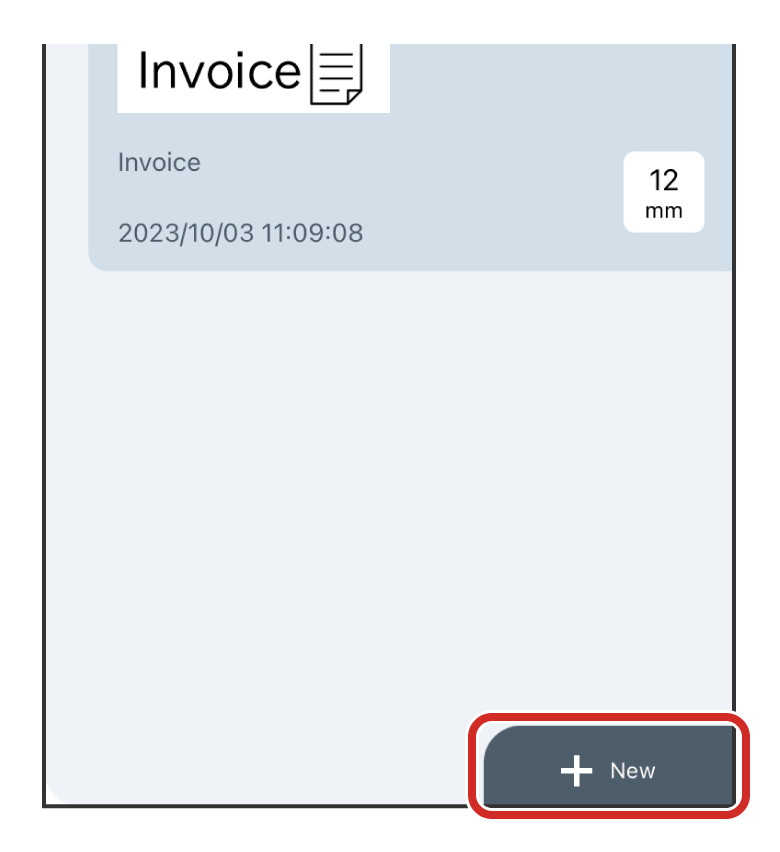
(2)
Tap "Create new file" or "Create new folder".
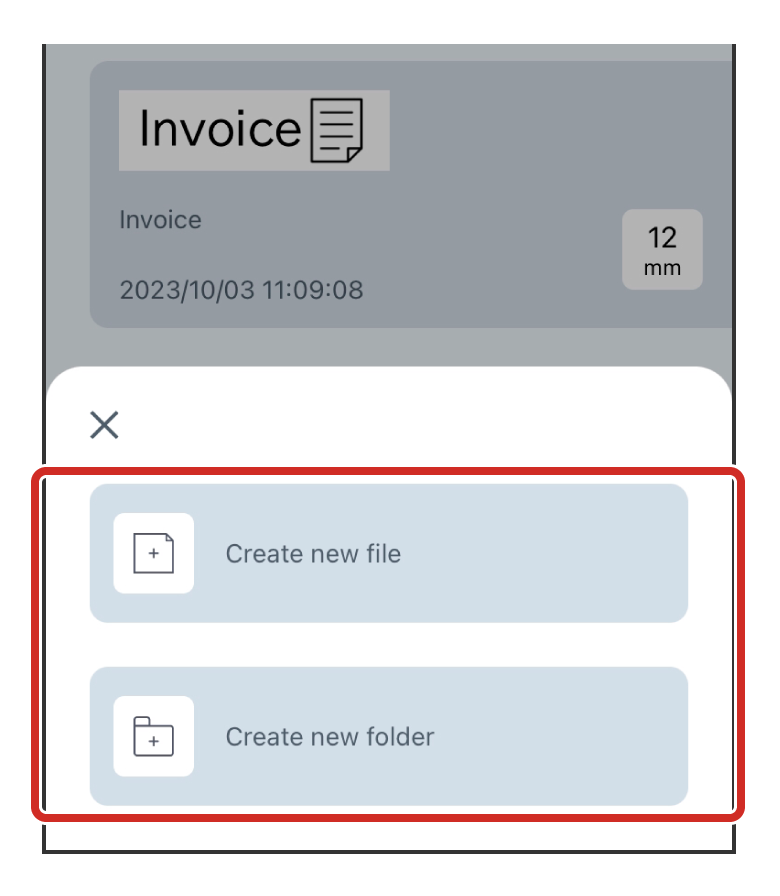
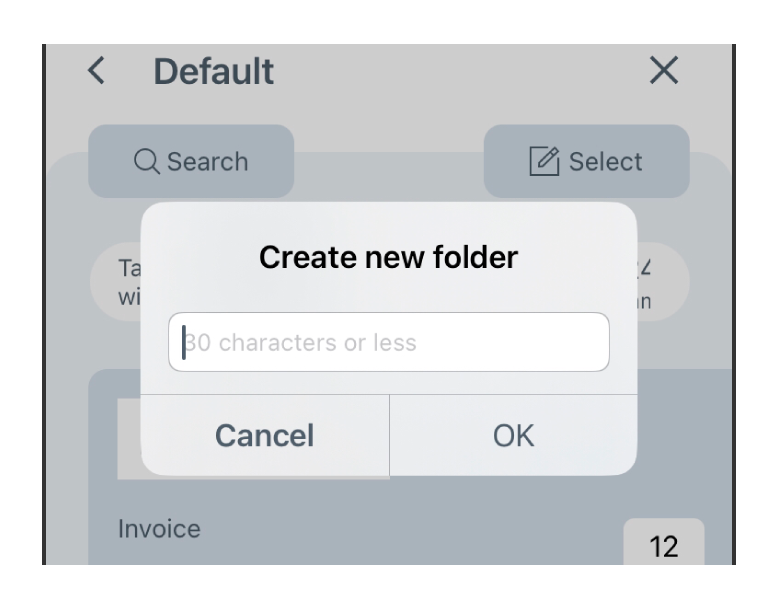
If you select "Create new folder," specify the folder name in the input screen.
If the folder name contains a "/" character, it will be automatically converted to a "_" character when you enter the folder name and tap "OK".
If the folder name contains a "/" character, it will be automatically converted to a "_" character when you enter the folder name and tap "OK".
If the "Default" folder is displayed, tap in the upper left of the screen to display the file list, and then select the appropriate folder.
in the upper left of the screen to display the file list, and then select the appropriate folder.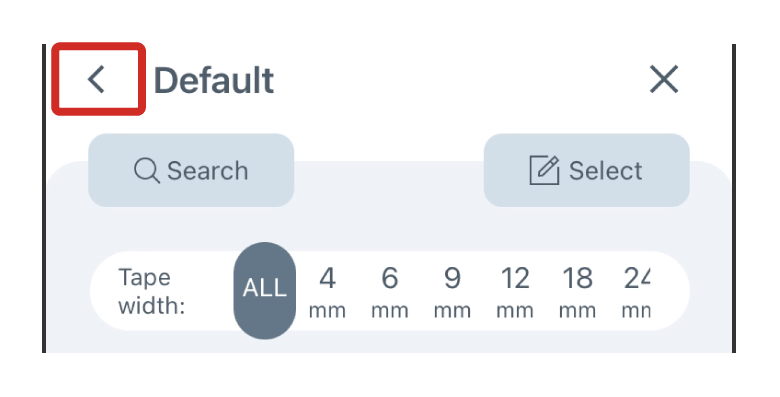
3-5Searching for a file
Performing a search
Go into the folder you want to search, tap  (Search) and enter the keywords.
The following are the targets that can be searched using keywords.
- File name
- Text information in text boxes included in label data

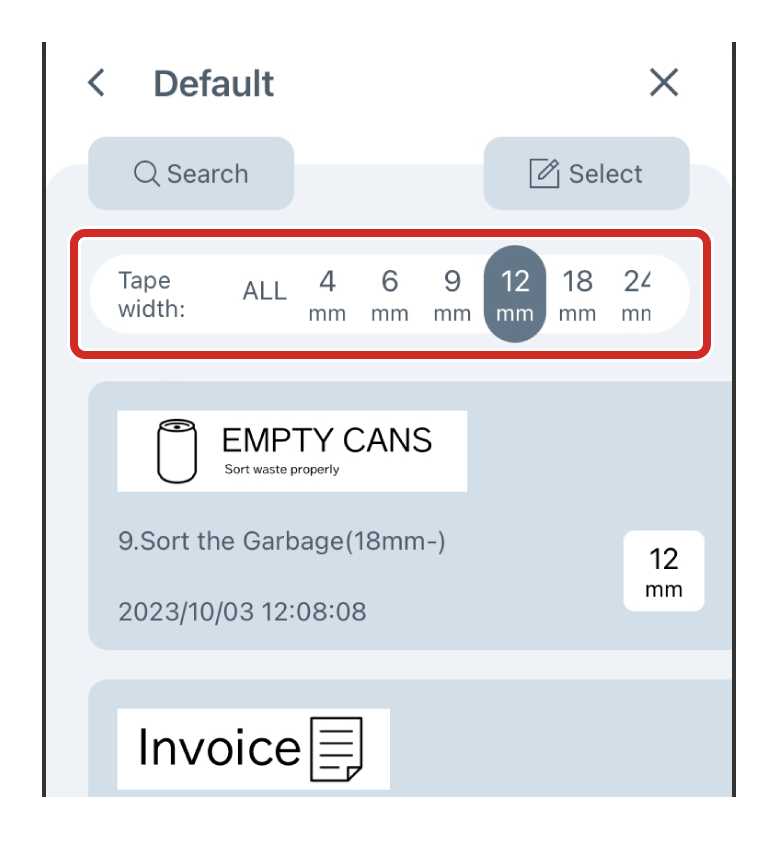
Filtering by tape width
Select the Tape Width you want to filter by under "Tape width".
3-6Retrieving the print history
(1)
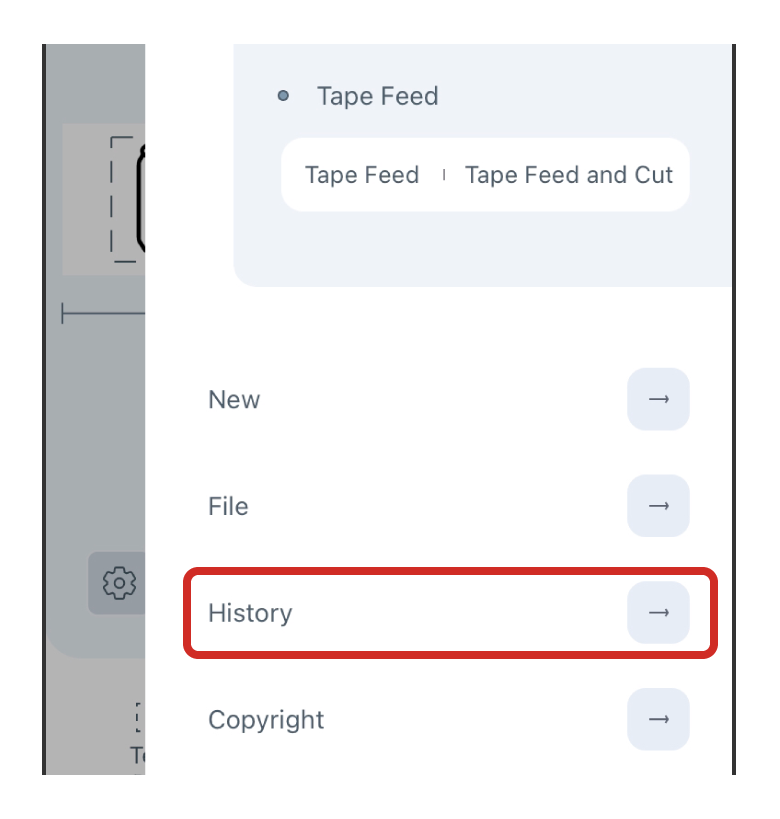
Tap (Menu) in the Label Editing Window.
(Menu) in the Label Editing Window.(2)
Tap "History".
(3)
Tap the print history you want to retrieve.
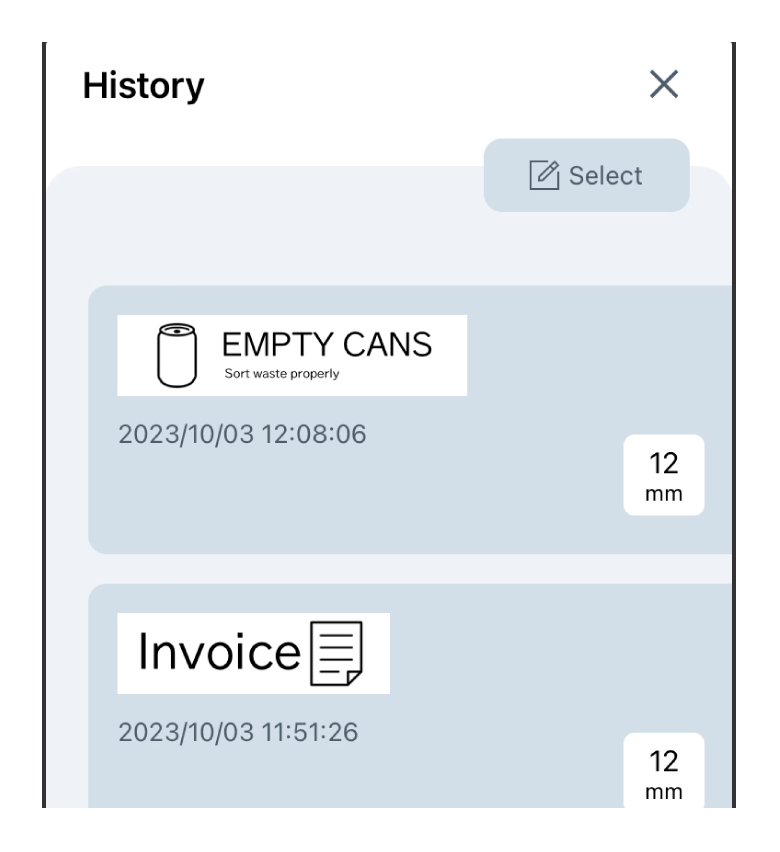
The most recent 300 print records are saved in the print history.
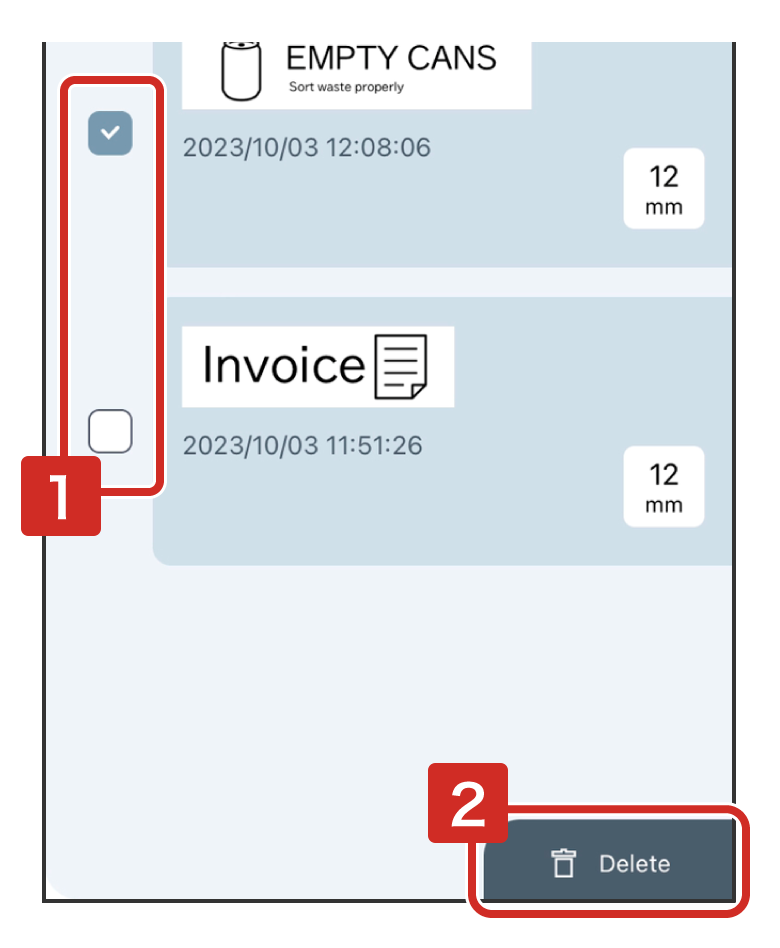
To delete the print history, tap (Select) in the History screen, check the files you want to delete, and then tap  (Delete).
(Select) in the History screen, check the files you want to delete, and then tap (Delete).