
2-1Tap 
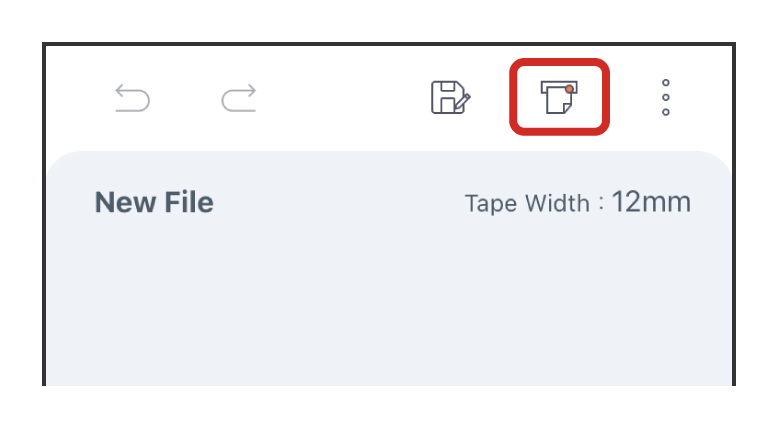
Tap (Print Settings) in the Label Editing Window.
2-2Selecting the printer
Select the printer you want to use for printing.
The method of connecting your device to the printer differs depending on the device model and operating system.

Turn on the printer and make sure the connection is enabled.
If you are using an iOS device
 in the Print Settings screen of this application and select the printer.
It may take some time before the printer appears on the screen.
If you are using an Android device
If the printer and your Android device have already been connected through the Bluetooth® connection screen on your Android device, you do not need to perform step (2).
2-3Check the connection with the printer
Make sure the status light on the printer is green.
Possible statuses:
 Green: Standby (ready for printing)
 Yellow: Printing
 Red: Error (error details are displayed)
To refresh the state of connection, tap  (Refresh).
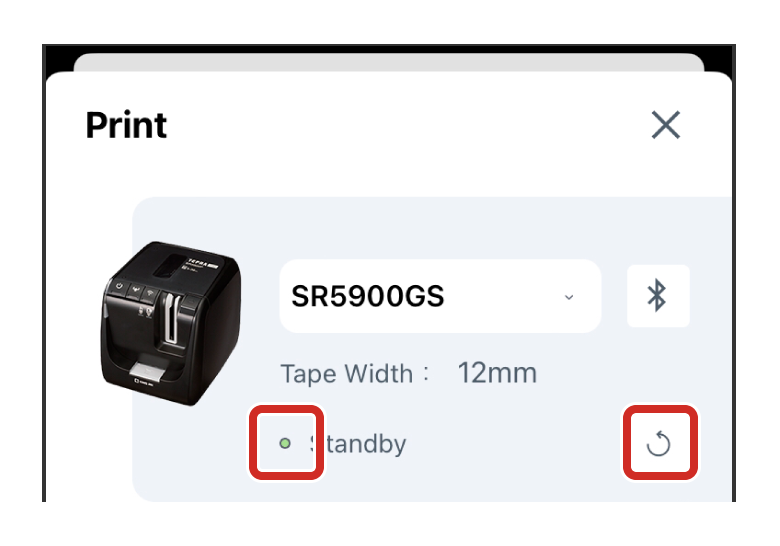 will not only refresh the connection status, but also change the tape width of the label you created to match the tape width of the tape cartridge loaded in the printer.
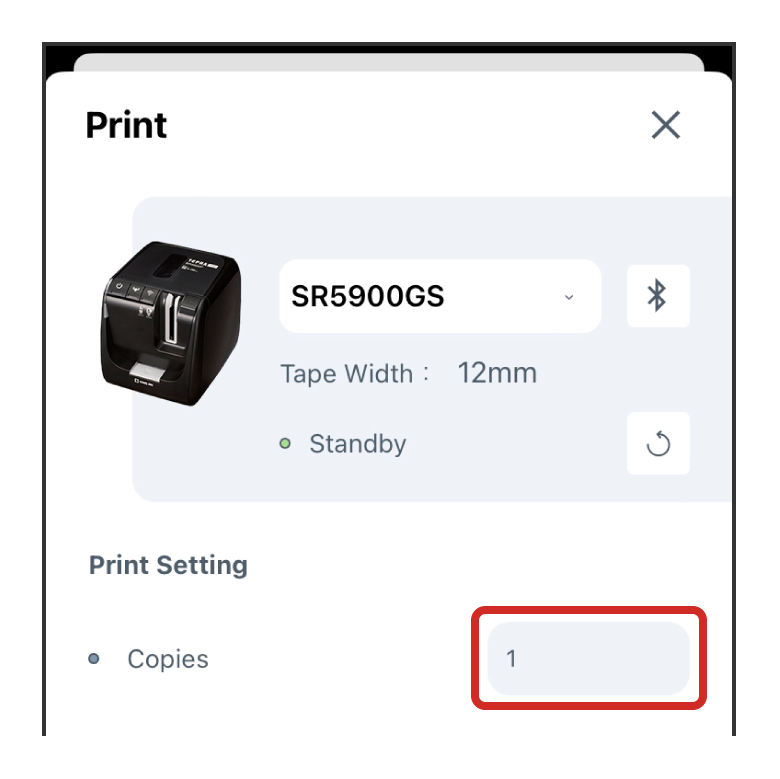
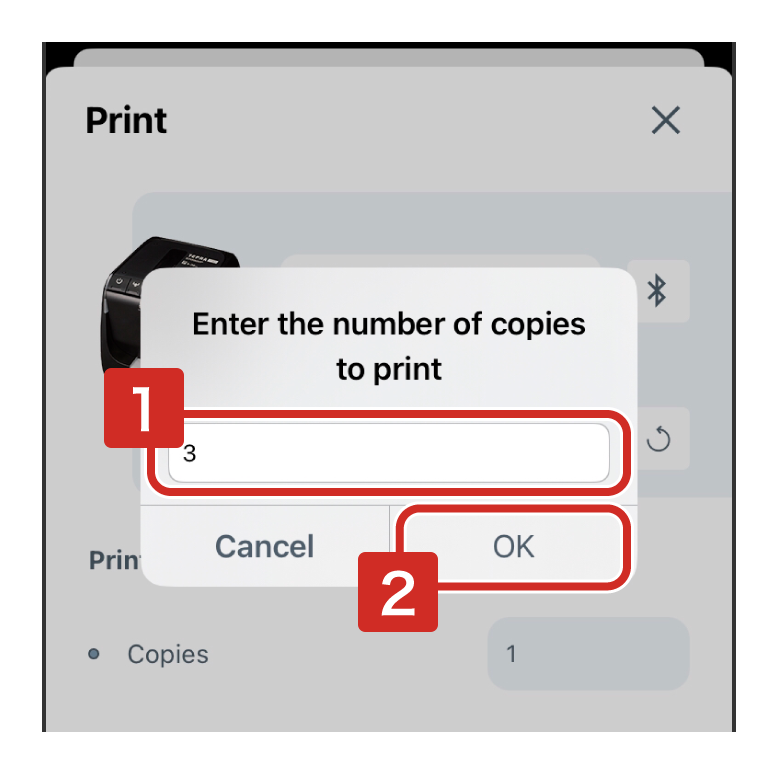
2-4Specifying the number of copies to be printed
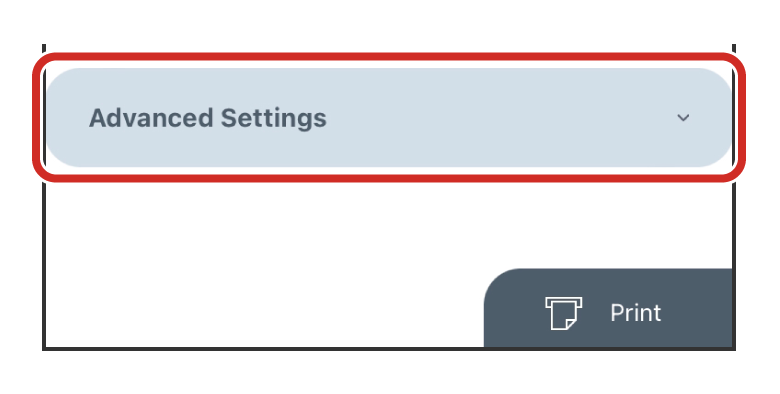
2-5Printing
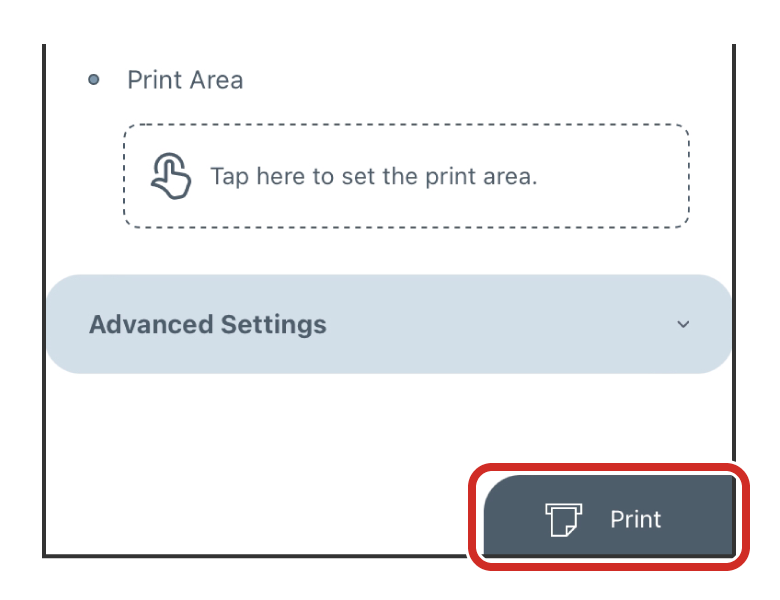
Tap  .
.
 .
.