
1-1Entering text
(1)
Launch the application and open the Label Editing Window.

(2)
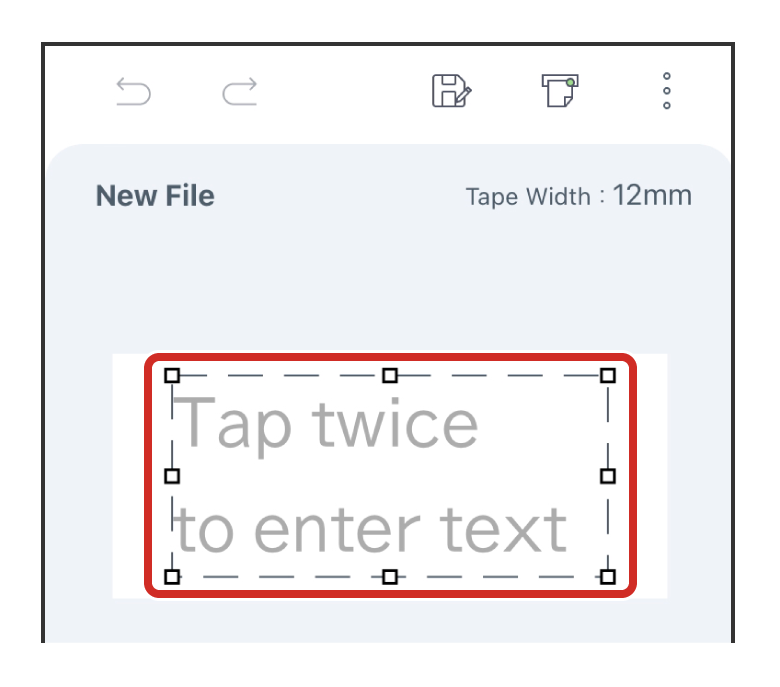
Double-tap "Tap twice to enter text".
(3)
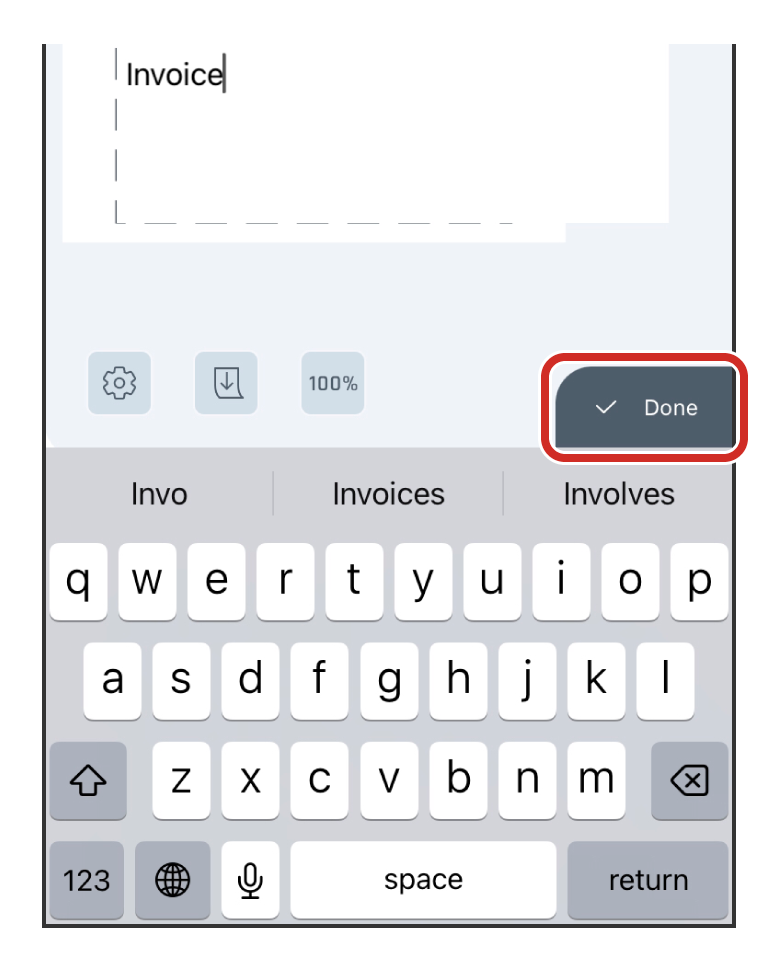
Enter the text on the keyboard and tap "Done".
 (Undo) and
  (Redo) can be used to undo or redo an operation.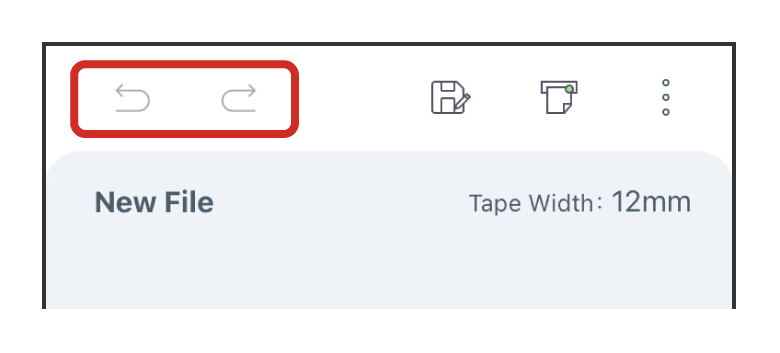
1-2Adding text boxes, signs, and other objects
(1)
Tap  (Other Objects).
(Other Objects).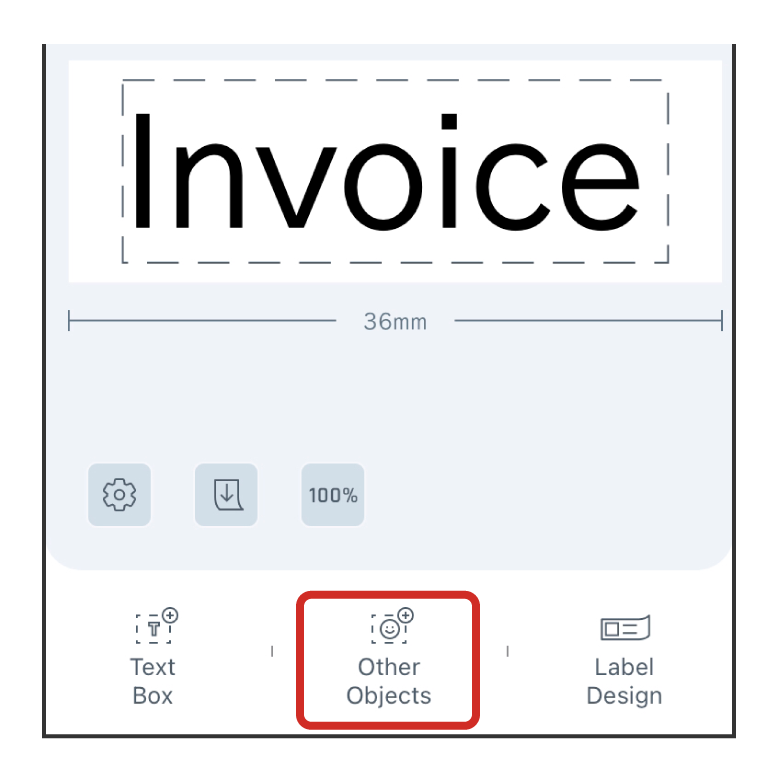
If the text box is still selected, will not appear at the bottom of the screen. To deselect a text box, tap once in the editing area other than the text box.
will not appear at the bottom of the screen. To deselect a text box, tap once in the editing area other than the text box.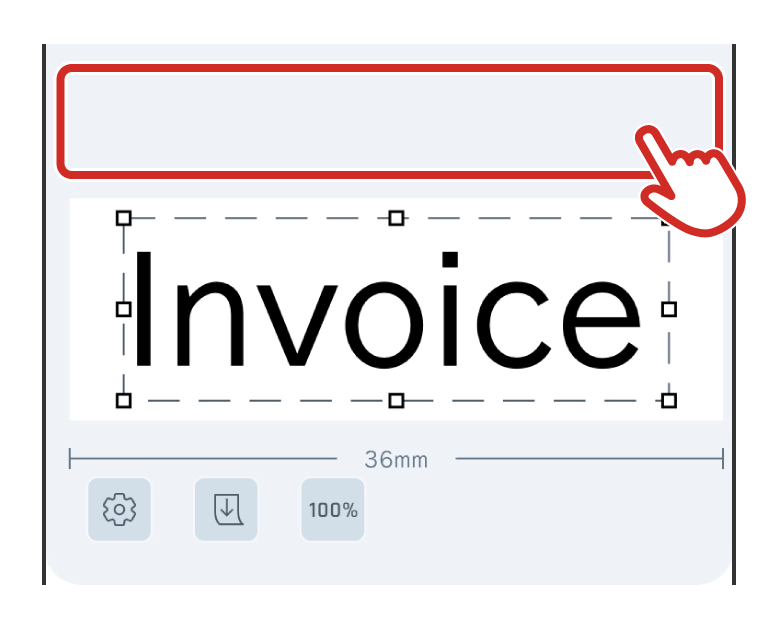
(2)
Select the object you want to insert.
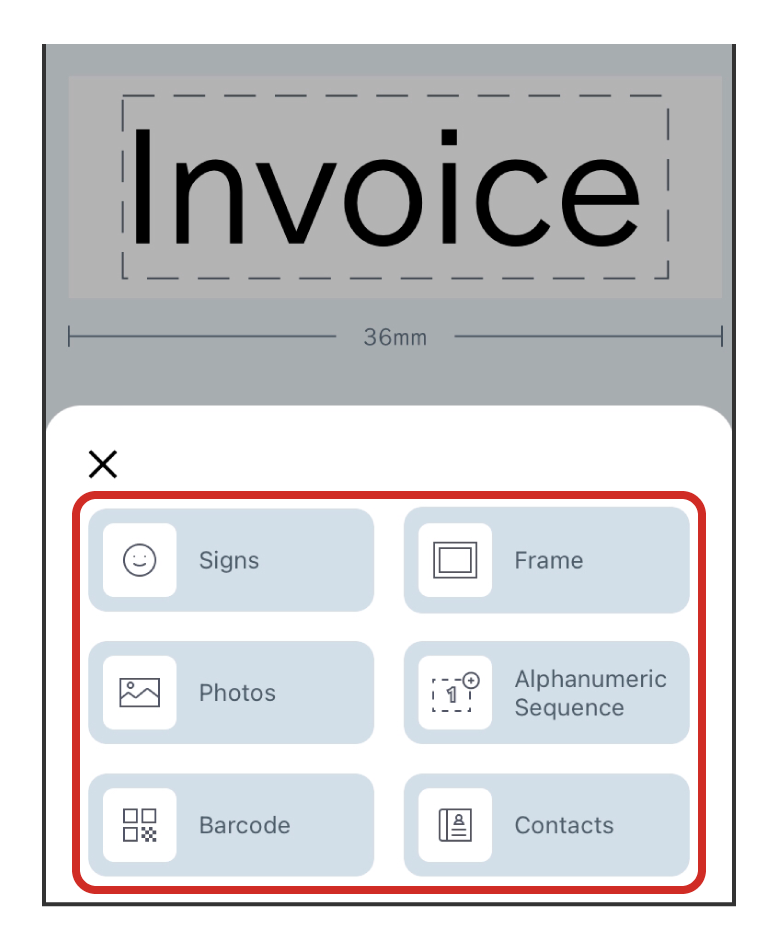
For more information specific to each object, see "4-7 Detailed Instructions on How to Edit Photos, Alphanumeric Sequences, and Barcodes".
(3)
Follow the instructions given in the screenshots to learn how to insert objects.
This screenshot shows how to insert signs. Select the signs you want to insert and tap "Insert".
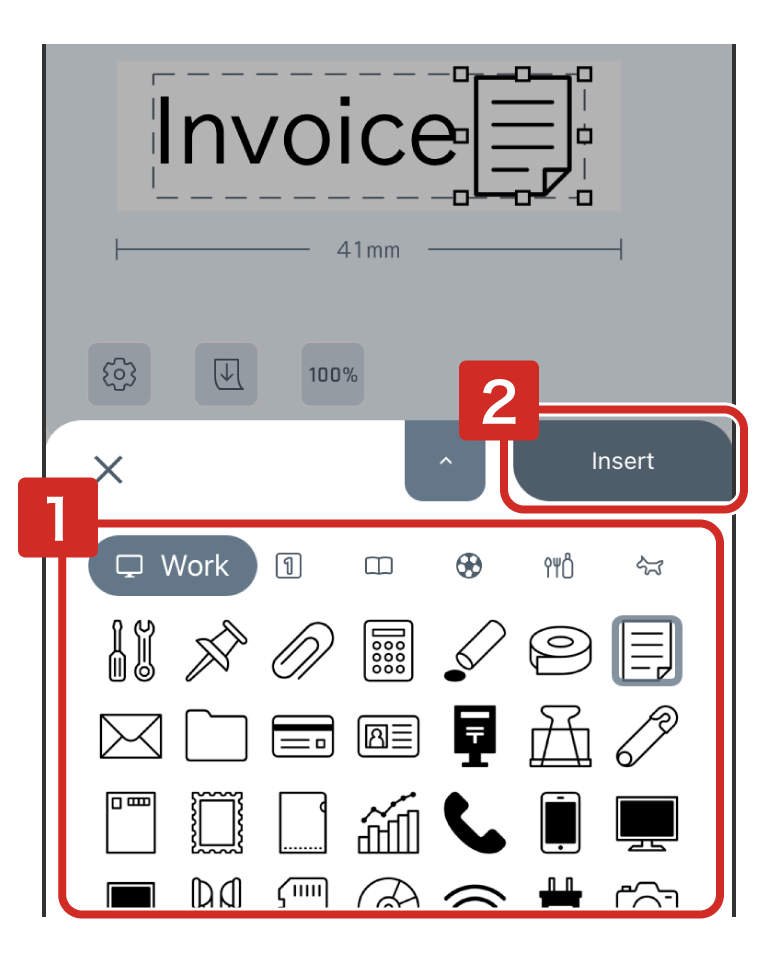
To add a text box, tap  (Text Box).
(Text Box).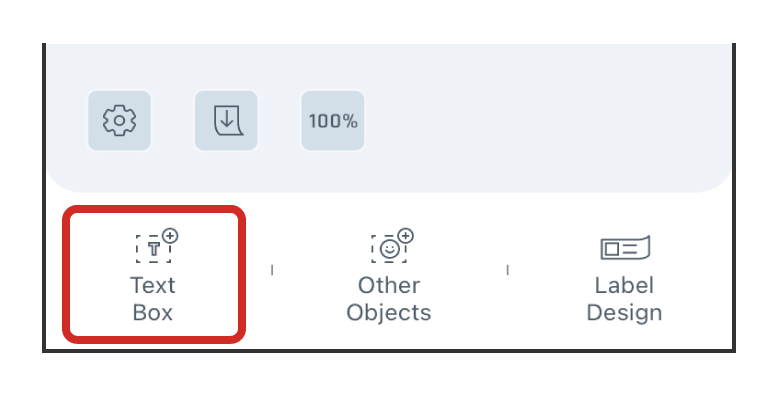
1-3Editing text boxes, signs, and other objects
Tap the object you want to edit and the Object Editing Window will appear. You can select deletion, rotation, alignment, grouping, and changing the stacking order of objects.
• : Delete objects
• : Rotate
• : Alignment
• : Group
Some functions may not be available depending on the type of object to edit. The functions that are not available are grayed out.
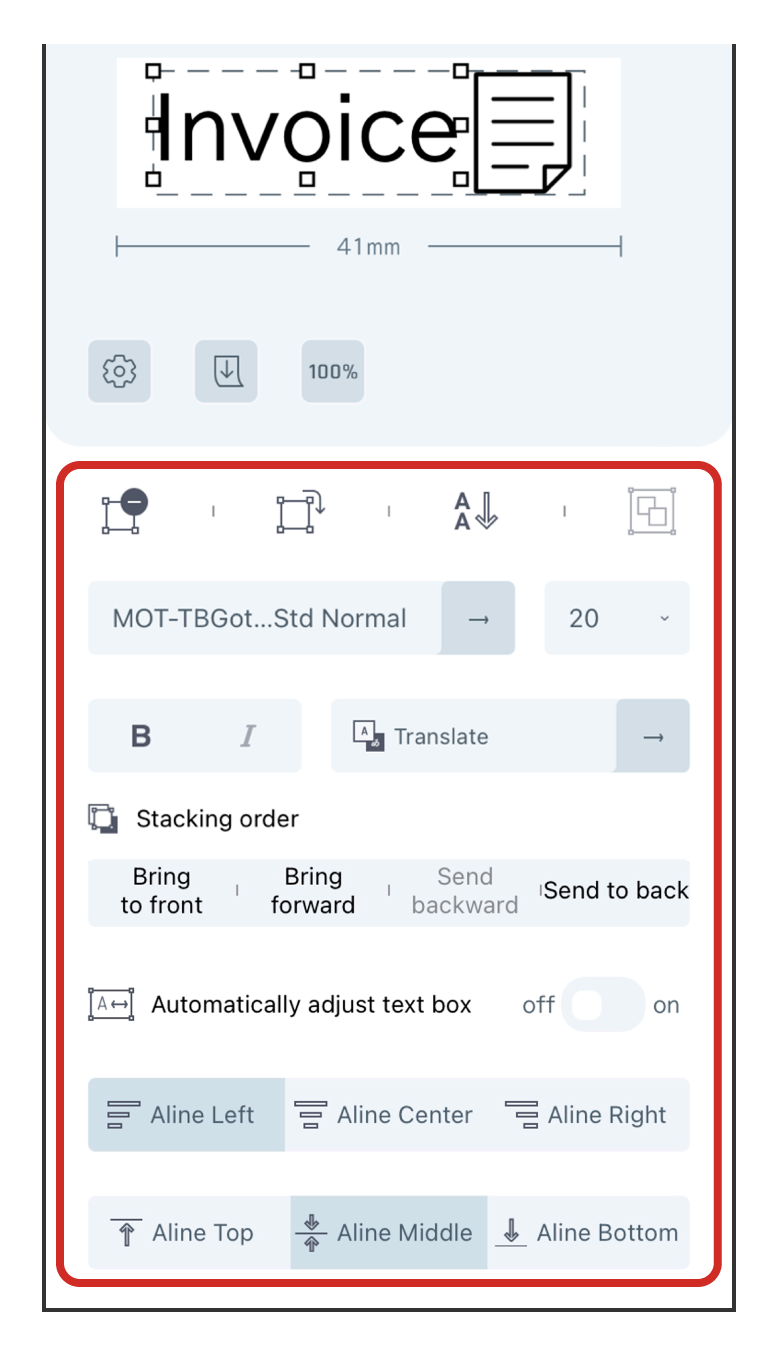
Grouping is used when multiple objects are selected. For details on how to select, see "Selecting multiple objects" in "4-8 Useful tips".
For "Photos," "Alphanumeric Sequence," and "Barcode" double-tap the object again to open the object's settings screen.
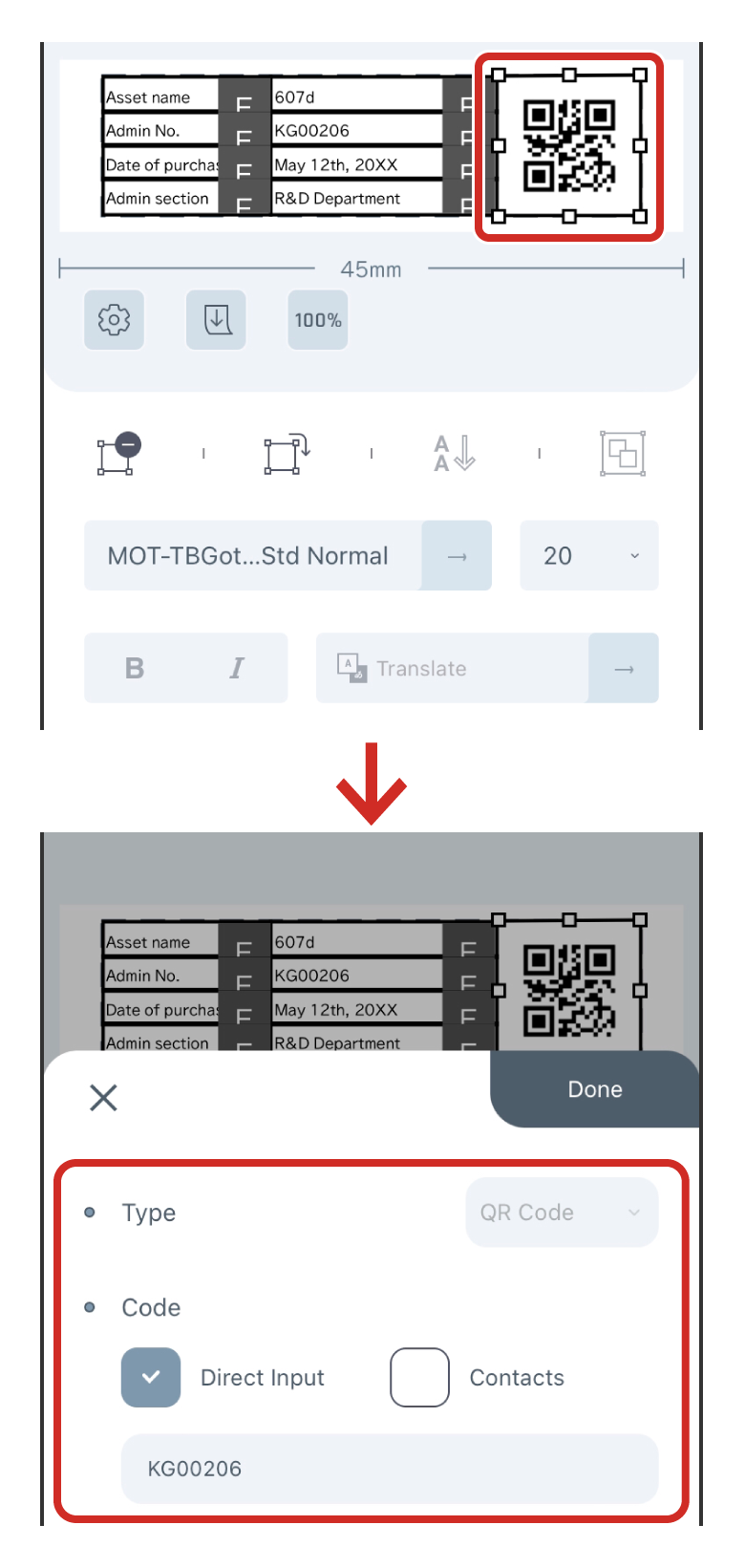
1-4Adjusting the layout
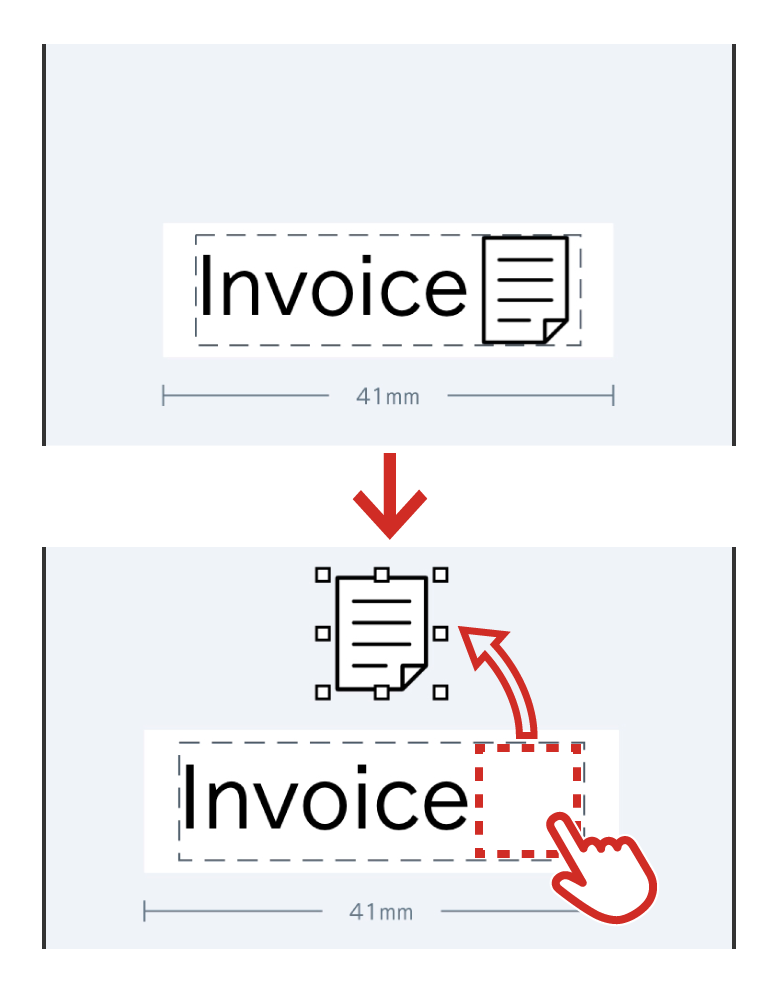
Moving an object to a different position
To move an object, tap the object you want to move and drag it.
Switching between Vertical Text and Horizontal Text
Tap  (Vertical Text) or
  (Horizontal Text).
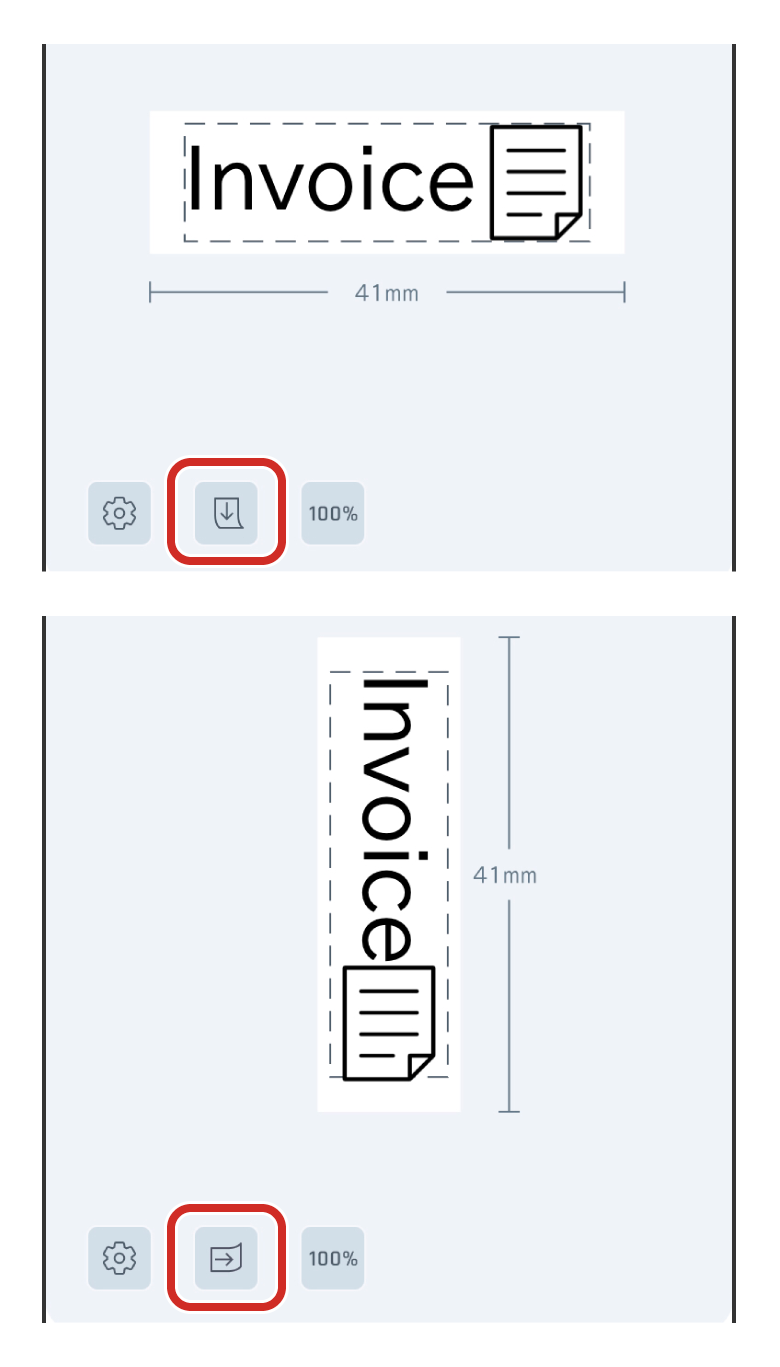
Using or allows you to switch the label alignment and the alignment of all objects at once. To switch between Vertical Text and Horizontal Text for an individual object, tap the editing area of the object you want to select, and then tap or  . To rotate an object, tap (Rotate).
or allows you to switch the label alignment and the alignment of all objects at once. To switch between Vertical Text and Horizontal Text for an individual object, tap the editing area of the object you want to select, and then tap or . To rotate an object, tap (Rotate).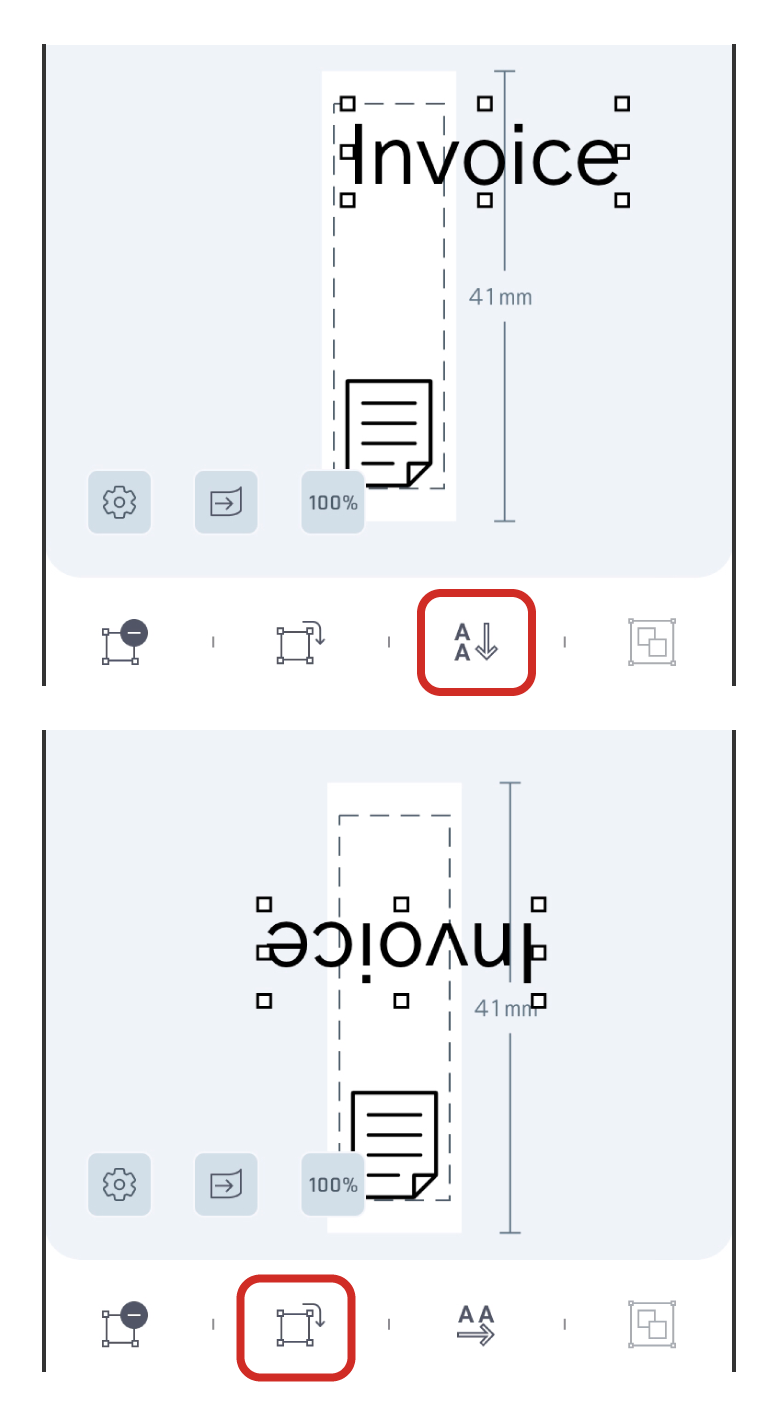
Zoom in or out on an object
Tap an object and drag one of the  (Anchors).
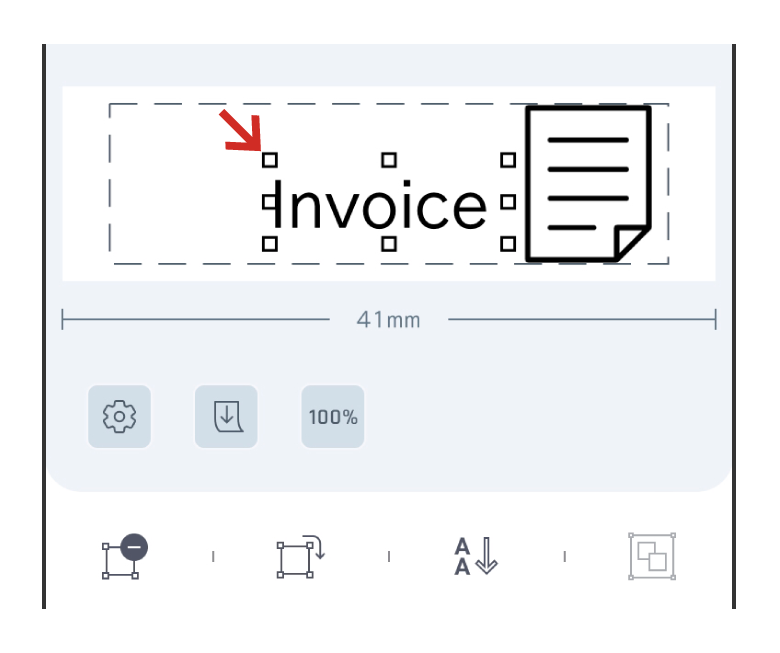
Dragging any of the (Anchors) will expand or contract the image, maintaining the aspect ratio.
(Anchors) will expand or contract the image, maintaining the aspect ratio.